
PMI SUPPORT · SMOKENINJA PRO V2
SmokeNINJA PRO V2 Support
Tutorial videos, troubleshooting answers and technical specifications for SmokeNINJA PRO V2.
Text Manual
Available in multiple languages

LEARN SMOKENINJA PRO V2
Tutorial Videos
Core SmokeNINJA Pro V2 operation, maintenance and compatible accessory tutorials.

How To Set Up
Official PMI SmokeNINJA Pro tutorial playlist
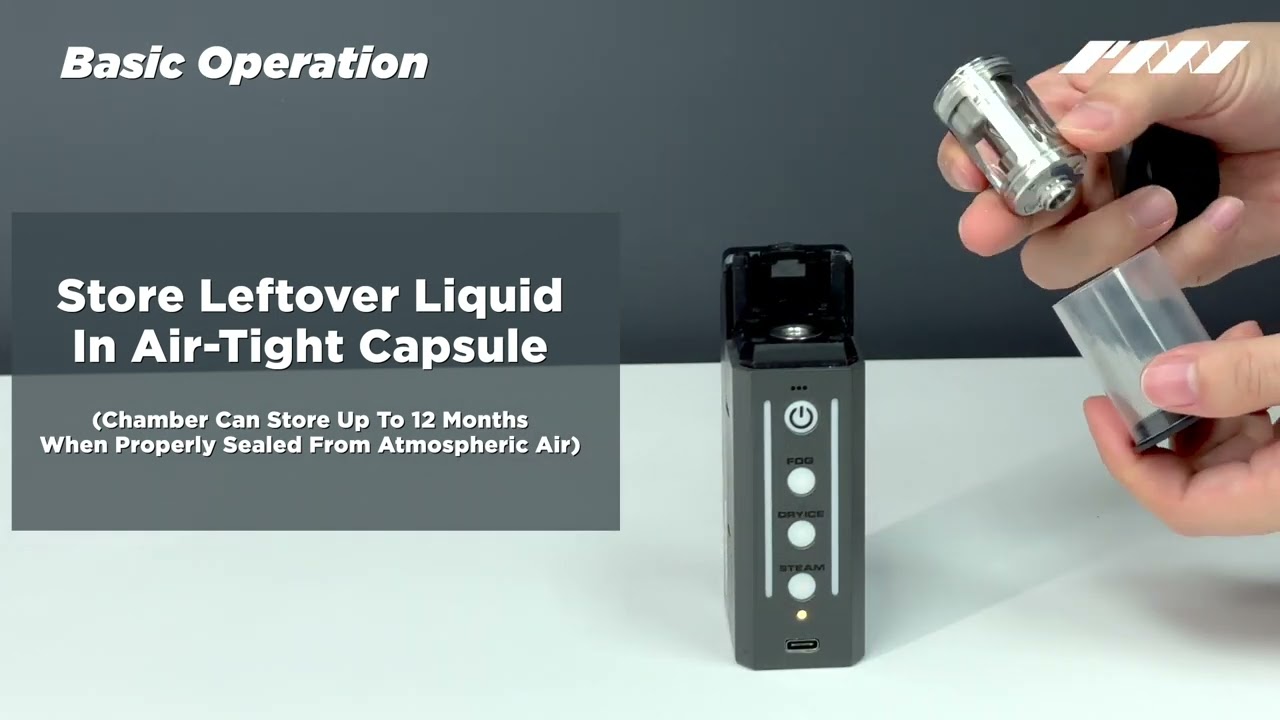
Basic Operation
Official PMI SmokeNINJA Pro tutorial playlist
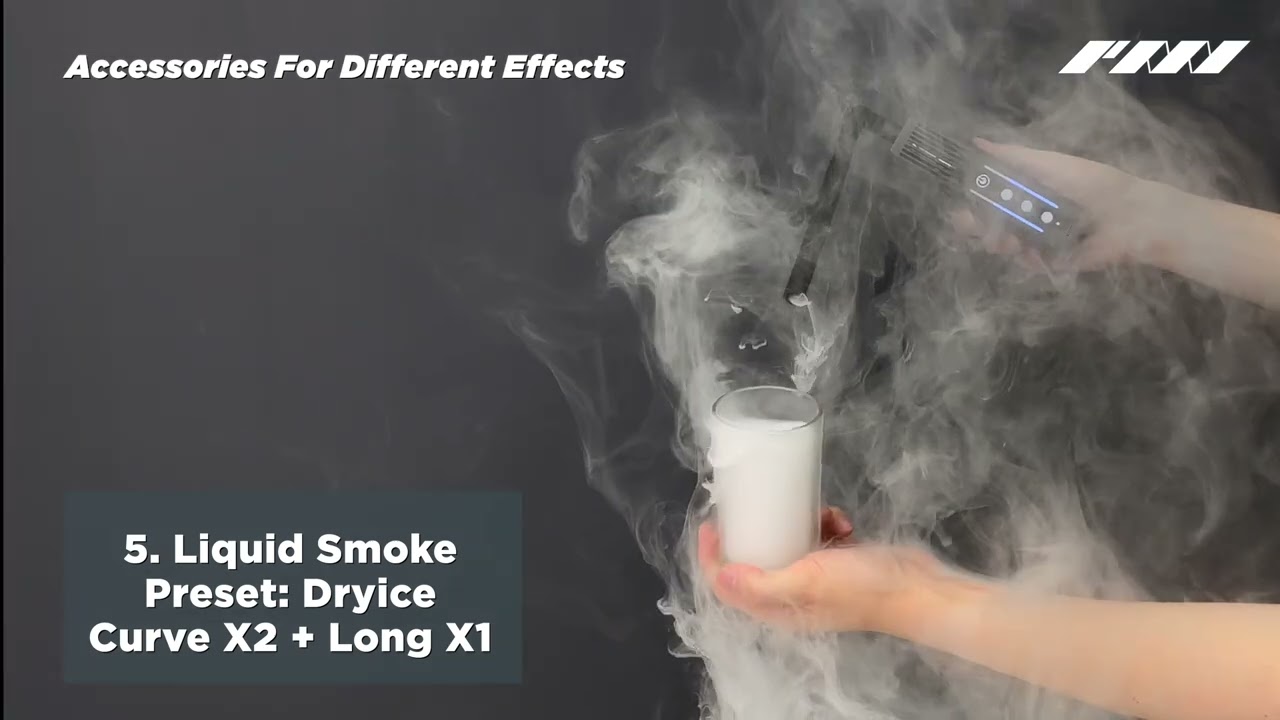
Accessories for Different Effects
Official PMI SmokeNINJA Pro tutorial playlist

Warning Signals and What to Do
Official PMI SmokeNINJA Pro tutorial playlist
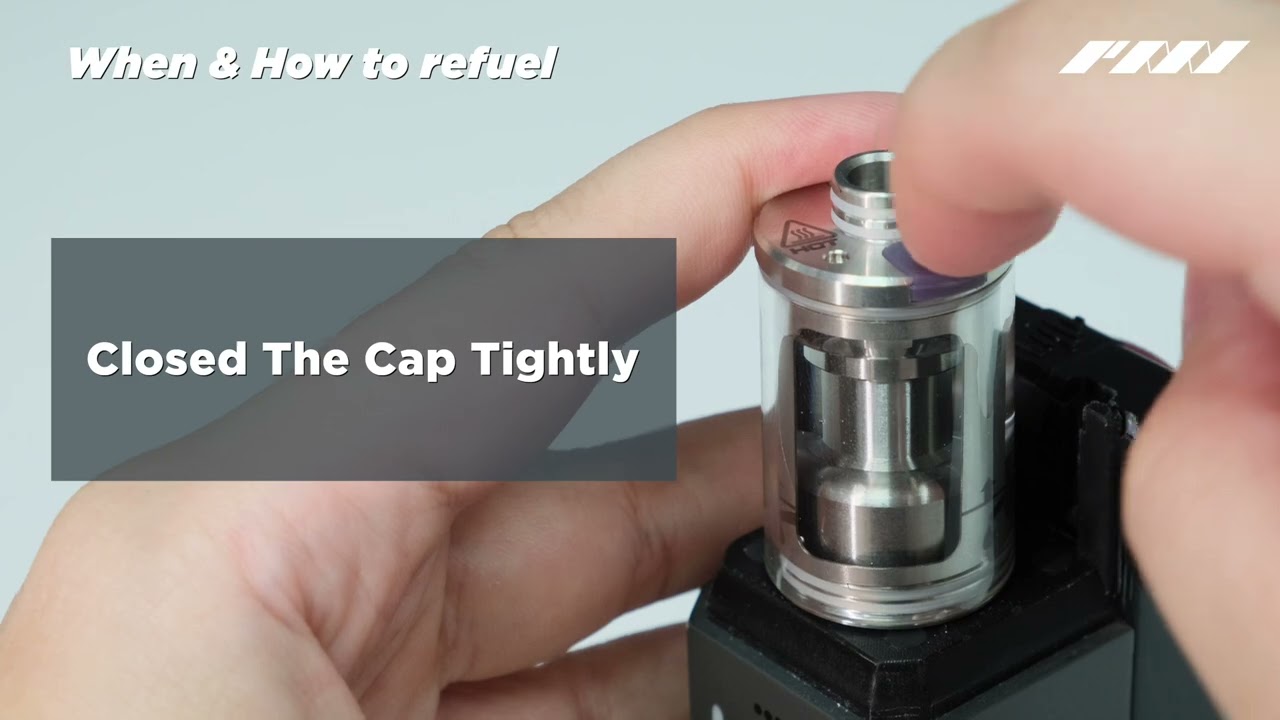
When & How to Refuel
Official PMI SmokeNINJA Pro tutorial playlist
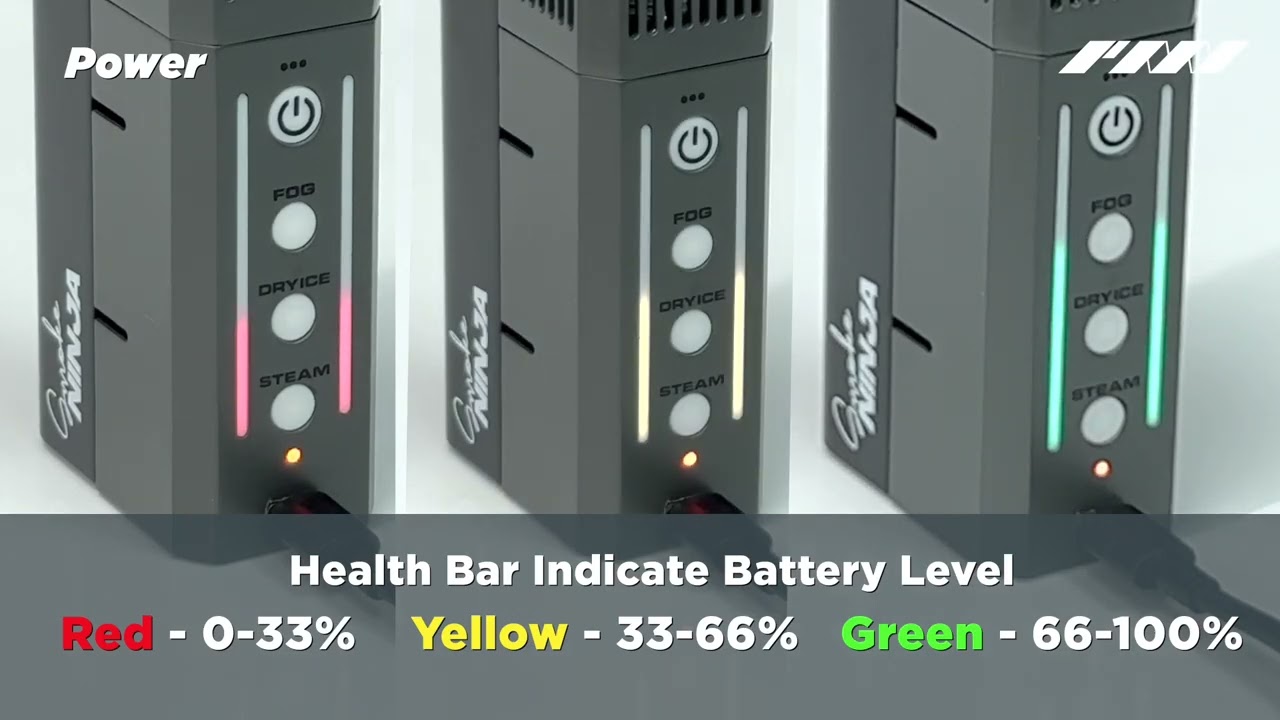
Battery & Charging
Official PMI SmokeNINJA Pro tutorial playlist

Storage and Flight
Official PMI SmokeNINJA Pro tutorial playlist

Spitting Liquid
Official PMI SmokeNINJA Pro tutorial playlist
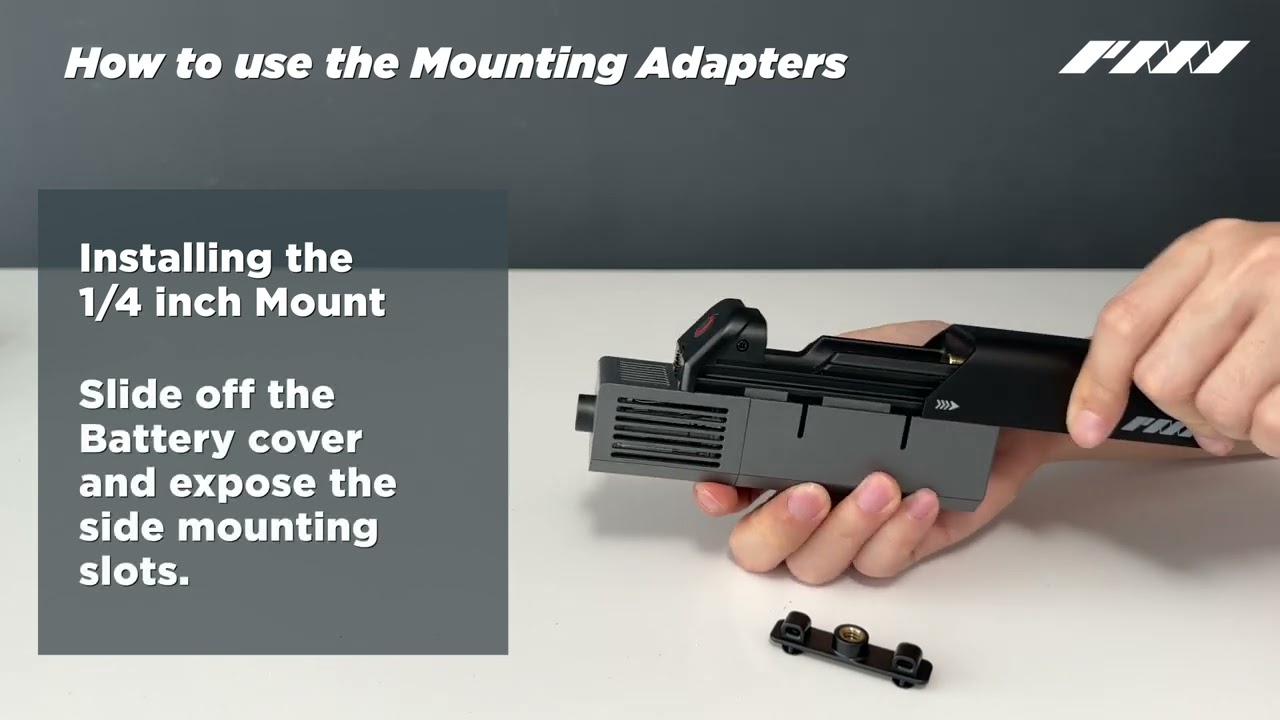
How to Use Mounting Adapters
Official PMI SmokeNINJA Pro tutorial playlist

Haze Nozzle Operation
Official PMI SmokeNINJA Pro tutorial playlist

Use Haze Nozzle with Accessories
Official PMI SmokeNINJA Pro tutorial playlist

Pairing and Unpairing Haze Nozzle
Official PMI SmokeNINJA Pro tutorial playlist

PMI Standard Remote V2 Tutorial
Pairing and operation
Remote & Additional Tutorials

PMI Auto Bubble Nozzle – Instructional Video
Additional SmokeNINJA Pro accessory tutorial

Extra Strong Bubble Formula with Bubble Nozzle
Additional SmokeNINJA Pro accessory tutorial
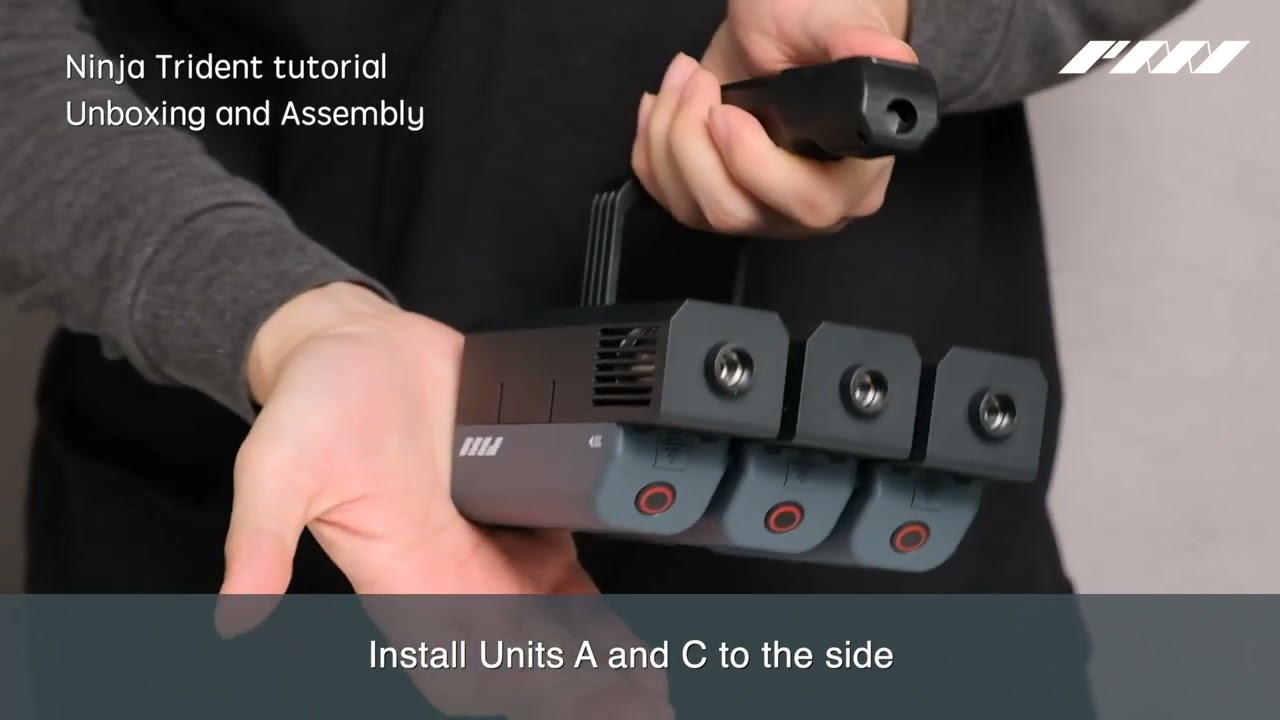
Ninja Trident Tutorial – Unboxing and Assembly
Additional SmokeNINJA Pro accessory tutorial

PMI Smoke Vest – Unboxing and Tutorial
Additional SmokeNINJA Pro accessory tutorial
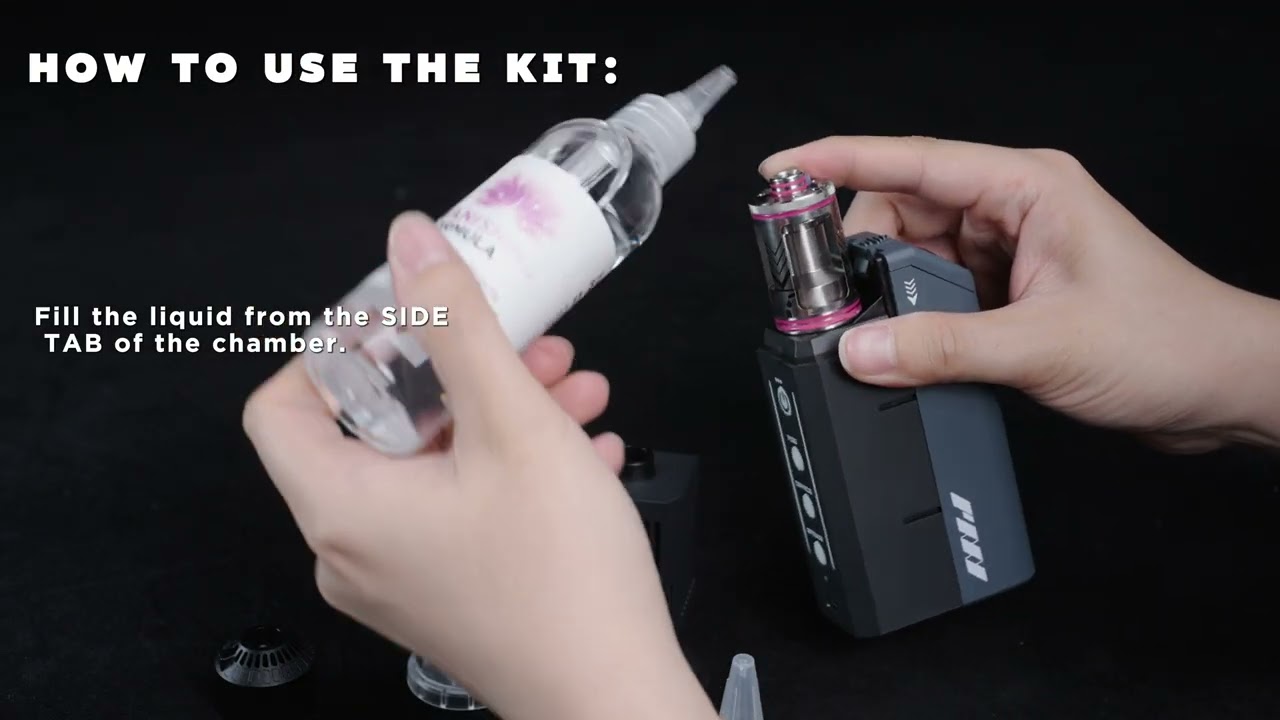
PMI Vanishing Formula Kit Setup Guide
Additional SmokeNINJA Pro accessory tutorial

PMI Magic Remote Tutorial
PMI Magic Remote tutorial
FAQ & Troubleshooting
Chapter 1 of 5 · Smoke Output
Why is my SmokeNINJA PRO V2 flashing red?
A flashing red light can signal overheating or a chamber problem. Turn off the device and let the chamber cool, then follow these checks.
Possible Cause:
•Low Liquid level - Check the liquid level. If it is below one-third, refill with the correct PMI formula.
•Chamber is not installed correctly - Make sure the contacts on both the chamber and device are clean and dry, then reinstall the chamber securely.
•Machine is tilting downward - Make sure the machine is outputting in an upright position(0°-90°).
•Cold Weather(below 10°C) - Cold weather can increase the formula's viscosity, preventing it from flowing properly to the heating element and causing overheating. follow the warm up steps in "Why is my SmokeNINJA PRO V2 producing weak smoke in cold weather?"
Still Having Issues?
If the red light continues flashing, stop using the device and contact cs@pmigear.com.
Please include your chamber model and a short video showing the issue to help our support team identify the problem.
Why is my SmokeNINJA PRO V2 producing weak smoke in cold weather?
In temperatures below 10°C, the fog formula may become thicker and flow less easily, resulting in weaker smoke output or triggering a protection warning.
Troubleshooting Steps
1. Make sure the chamber is at least one-third full.
2. Switch to Steam mode and run the device for 2–3 minutes to warm up the chamber.
3. Return to your preferred setting and test with a short burst. Stop if the warning light appears again.
Alternative Solution
Turn off the device and allow the chamber to cool down.
Remove the chamber and place it in a warm environment (above 20°C) for at least 5 minutes.
Reinstall the chamber and test the device again.
Why is the smoke weak when I point my SmokeNINJA PRO V2 downward?
When the device is pointed downward, the formula may not flow properly to the heating element, resulting in weaker smoke output.
Troubleshooting Steps:
1. Use short bursts when pointing the device downward and return the device to an upright position between bursts to allow the formula to flow properly.
2. nozzle or adapter to redirect the smoke.
Important
Avoid holding the device upside down during long bursts.
If the smoke remains weak, or the device spits or gurgles even when upright, follow the cleaning instructions in Smoke Output.
What should I do if my Chamber 3.0 or VF Chamber is spitting or gurgling?
Spitting, gurgling, or weak smoke output may indicate excess formula trapped inside the AERO MESH.
Follow the steps below to remove the excess formula and restore normal smoke output.
Troubleshooting Steps
1. Remove any attached nozzles from the device.
2. Place a paper towel beneath the smoke outlet to catch any excess formula.
3. Turn the device upside down and activate the smoke output for 5–10 seconds, directing it onto the paper towel.

Gently shake the device if needed. Repeat the 5–10 second process until the excess formula is cleared and normal smoke output returns.
Return the device to an upright position and reattach the nozzle.
Important
This is a short cleaning procedure. Avoid operating the device upside down for extended periods.
Still Having Issues?
If the issue continues after cleaning, stop using the device and contact cs@pmigear.com. Please include your chamber model and a short video showing the issue.
Why is my SmokeNINJA PRO V2 producing weak smoke in cold weather?
In temperatures below 10°C, the fog formula may become thicker and flow less easily, resulting in weaker smoke output or triggering a protection warning.
In temperatures below 10°C, the fog formula may become thicker and flow less easily, resulting in weaker smoke output or triggering a protection warning.
Troubleshooting Steps
1. Make sure the chamber is at least one-third full.
2. Switch to Steam mode and run the device for 2–3 minutes to warm up the chamber.
3. Return to your preferred setting and test with a short burst. Stop if the warning light appears again.
Alternative Solution
1. Turn off the device and allow the chamber to cool down.
2. Remove the chamber and place it in a warm environment (above 20°C) for at least 5 minutes.
3. Reinstall the chamber and test the device again.
Can I use SmokeNINJA PRO V2 to create haze?
Yes! SmokeNINJA PRO V2 can create a fine, even haze when used with the compatible Haze Nozzle.
Attach the Haze Nozzle and start with a short burst. Allow the haze to spread before adding more.
The amount of haze needed depends on the room size, airflow, and ventilation.
Important
Check the venue's smoke detector regulations before use.
Chapter 2 of 5 · Battery
Why is my SmokeNINJA PRO V2 not charging?
A full charge normally takes approximately 1.5 hours. If your device is not charging, follow the steps below.
A full charge takes about 1.5 hours. If it won’t charge, check the following:
Troubleshooting Steps
1. Make sure you're using a 5V/2A USB power supply and the supplied USB-C cable.
2. Turn off the device and disconnect the charging cable.
3. Remove and reinstall the battery, making sure the polarity (+/−) is correct.
4. Check that you're using a compatible flat-top, unprotected 18650 battery and that the battery contacts are clean and dry.
5. Reconnect the charging cable. If the issue continues, try another USB-C cable and power supply.
6. If possible, test with another compatible battery.
Charging Indicator

Still Having Issues?
If your device still won't charge, contact cs@pmigear.com and describe what happens to the charging indicator when the cable is connected.
How long does the SmokeNINJA PRO V2 battery last?
With a fully charged battery, the approximate total output time is:
Fog / Dry Ice / Haze: Up to 15 minutes
Steam: Up to 90 minutes
These are the total output times across multiple bursts, not the duration of a single continuous burst.
Getting Shorter Battery Life?
Fully charge the battery and test again using the same settings.
If possible, test with another compatible 18650 battery.
Check the formula level, as an empty chamber can also interrupt smoke output.
Chapter 3 of 5 · Chamber
Why is my SmokeNINJA PRO V2 showing only the battery light or a solid red light?
The device may not be detecting the chamber correctly. Check the warning signals below to identify the issue.
1. Only the Battery Light Is On
The device is not detecting the chamber.

2. Solid Red Light
Check that the chamber is fitted securely and that the electrical contacts are clean and dry.

Troubleshooting Steps
1. Turn off the device and allow the chamber to cool down.
2. Remove the chamber and make sure the contacts on both the chamber and device are clean and dry.
3. Reinstall the chamber securely, then turn the device back on and test again.
4. If the issue continues, try another compatible chamber if available.
Still Having Issues?
If the device still cannot detect the chamber, contact cs@pmigear.com.
Please include your chamber model and a short video showing the warning lights.
Which chamber and formula should I use with my SmokeNINJA PRO V2?
SmokeNINJA PRO V2 supports two types of formula, each requiring a specific chamber:
Cloud Formula: Use with the PMI Fog Chamber 3.0.
Vanishing Formula: Use with the VF Chamber and Amplifier Nozzle.
Important
Do not mix Cloud Formula and Vanishing Formula.Always use the correct formula with its designated chamber.
How do I refill my SmokeNINJA PRO V2 chamber?
Refill the chamber when the formula level drops below one-third. The chamber has a capacity of 8.5 mL.
Refilling Steps
1. Turn off the device and allow the chamber to cool down.
2. Open the silicone refill cap.
3. Carefully refill the chamber with the correct PMI formula.
4. Close the silicone cap securely and wipe away any spilled formula.
5. Make sure the chamber is properly installed before using the device.
 Related: Chamber and formula compatibilityStill need help? cs@pmigear.com
How long does a full chamber last?
A full chamber holds 8.5 mL of formula and provides approximately:
Fog / Dry Ice / Haze: 18 minutes of total output
Steam: 90 minutes of total output
These are approximate total output times across multiple bursts, not the duration of a single continuous burst.
Important
Actual runtime depends on the output mode and settings. Battery life and chamber capacity are separate limits.
What should I do if my chamber is leaking?
The chamber uses air pressure to keep the formula inside during normal use. Leakage can occur when:
•The refill cap is not fully closed. The grey silicone cap needs to be securely sealed.
•Excess formula collects at the bottom of the chamber. This can create a siphoning effect, drawing more formula out and causing continued dripping.
Troubleshooting steps
1. Check that the grey silicone refill cap is fully closed.
2. Wipe away any leaked formula and inspect the chamber for visible damage.If you remove the chamber, make sure the electrical contacts on both the chamber and device are clean and completely dry before reinstalling it.
3. Remove any attached nozzles and place a paper towel beneath the outlet. With the chamber installed, turn the device upside down and activate the smoke output for 5–10 seconds, directing the output onto the paper towel to clear the excess formula.
4. Return the device upright and reattach the nozzle before resuming normal use.

Still leaking?
If you notice visible damage or the chamber continues to leak, stop using it and contact cs@pmigear.com. Include your chamber model and a photo showing where the formula is leaking
How should I store my chamber and leftover formula?
If you won't be using your chamber for more than 24 hours, follow these steps:
1. Turn off the device and allow the chamber to cool completely.
2. Remove the chamber and make sure the silicone refill cap is securely closed.
3. Store the chamber in its airtight storage capsule. You can leave the correct PMI formula inside.
4. Keep formula bottles tightly sealed and store them at room temperature, away from direct sunlight.
When should I replace my chamber?
You should consider replacing your chamber if it shows any of the following signs, even after cleaning and troubleshooting:
Your chamber may need replacing if these problems persist after cleaning and troubleshooting:
Unusual Smell: A persistent burnt or unusual smell.
Weak Smoke Output: Significantly reduced smoke output or repeated warning signals.
Physical Damage: Visible damage or persistent formula leakage.
How to Replace the Chamber
1. Turn off the device and allow the chamber to cool completely.
2. Remove the old chamber and make sure the device contacts are clean and dry.
3. Install a compatible replacement chamber and fill it with the correct PMI formula.
4. Turn on the device and test the smoke output.
Still Unsure?
If you're not sure whether your chamber needs replacing, contact cs@pmigear.com with your chamber model, approximate age, and a description of the issue.
Can I use third-party fog liquid?
No. Use only our Cloud Formula or Vanishing Formula, with the matching chamber.
Using third-party fog liquids may cause poor smoke performance, chamber malfunction, or damage to the device.
Important
Always use the correct PMI formula for your chamber. Do not mix Cloud Formula and Vanishing Formula.
Chapter 4 of 5 · Remote Control
How do I pair my Standard Remote V2 with SmokeNINJA PRO V2?
Follow the steps below to pair your Standard Remote V2 with SmokeNINJA PRO V2.
Pairing Steps
1. Turn your SmokeNINJA PRO V2 off and back on.
2. Within 30 seconds, press and hold the Pair button on the remote for 5 seconds.
3. Press the ON button once.
4. Press the OFF button three times.
Having Trouble Pairing?
If the device doesn't respond:
Move the remote closer to the device.
Check the remote's 23A 12V battery and replace it if necessary.
Repeat the pairing steps above.
How do I unpair my Standard Remote V2?
Unpairing will remove all remote pairings stored on your SmokeNINJA PRO V2. You will need to pair your remotes again before using them.
Unpairing will remove all remote pairings stored on your SmokeNINJA PRO V2. You will need to pair your remotes again before using them.
Unpairing Steps
1. Switch SmokeNINJA PRO V2 off and back on.
2. Within 30 seconds, press and hold the UNPAIR button until the device's remote indicator starts flashing.
3. To reconnect your remotes, follow the Standard Remote V2 Pairing Guide for each remote.
Important
This will not affect the Haze Nozzle's separate Bluetooth connection.
How do I pair my Magic Remote with SmokeNINJA PRO V2?
Follow the steps below to pair your Magic Remote with SmokeNINJA PRO V2.
Pairing Steps
1. Switch SmokeNINJA PRO V2 off and back on.
2. Within 30 seconds, press and hold C + D together for 5 seconds, until the SET indicator turns on.
3. Press your chosen ON button once. The indicator will flash to confirm that the ON signal has been received.
4. Press your chosen OFF button three times. The indicator will flash each time to confirm that the OFF signal has been received.
Your Magic Remote is now paired, with Trigger Mode selected by default. You can switch between Trigger Mode and ON/OFF Mode after pairing.
Important
You can assign any of the four buttons (A, B, C, or D) on your Magic Remote.
Always set an OFF button before switching to Continuous Mode. Otherwise, you won't be able to stop the smoke output using the remote.
Having Trouble Pairing?
If the device doesn't respond:
1. Move the Magic Remote closer to the device.
2. Check the remote's battery indicator and replace the battery if necessary.
3. Repeat the pairing steps above.
4. If pairing is successful but the smoke output behaves differently than expected, check the selected Control Mode.
Battery Indicator
• Bright Red — Normal
• Dim Red — Replace Remote Battery
• Blinking Red — Replace Remote Battery
 ▶ Magic Remote – Pairing GuideRelated: Check Magic Remote control modesStill need help? cs@pmigear.com
How do I unpair my Magic Remote from SmokeNINJA PRO V2?
Unpairing will remove all Magic Remote button pairings stored on your SmokeNINJA PRO V2. You will need to pair your Magic Remote buttons again before using them.
Unpairing Steps
1. Switch SmokeNINJA PRO V2 off and back on.
2. Within 30 seconds, press and hold buttons A + B together for 5 seconds.
3. The SET indicator will flash to confirm that all stored Magic Remote button pairings have been erased.
Important
This process removes all Magic Remote button pairings, not just one button.
To reconnect your Magic Remote, follow the Magic Remote Pairing Guide.
How do I change the control mode on my SmokeNINJA PRO V2?
The SmokeNINJA Pro V2 supports 2 control modes:
Available Control Modes
• Trigger Mode — Hold the paired button to produce smoke. Release it to stop.
• Continuous (ON/OFF) Mode — Press the paired ON button to start smoke output and the OFF button to stop.
How to Change Control Mode Using Standard Remote V2
1. Remove the battery cover on the back of the remote to access the Trigger Mode and ON/OFF Mode buttons.
2. Switch SmokeNINJA PRO V2 off and back on.
3. Within 30 seconds, press and hold the button for your preferred mode for 5 seconds.
4. The indicator light will flash a few times to confirm that the control mode has changed.

Back of remote:
A - Pairing
B - Erase
C = Trigger Mode
D - ON/OFF Mode
Using Magic Remote
1. Switch SmokeNINJA PRO V2 off and back on.
2. Within 30 seconds, press and hold the button combination for your preferred mode for 5 seconds:
Trigger Mode: B + C
Continuous (ON/OFF) Mode: B + D
3. The device is now set to your selected control mode.
Important
Continuous Mode: Always pair separate ON and OFF buttons before switching to Continuous Mode. Otherwise, you won't be able to stop the smoke output using the remote.
Output Limits: Continuous Mode is still subject to the device's normal output and overheating protection limits.
Formula Level: Make sure the chamber has enough formula before use.
Can I control multiple SmokeNINJA PRO V2 devices simultaneously?
Yes! Both Standard Remote V2 and Magic Remote can control multiple SmokeNINJA PRO V2 units together. Use the remote’s pairing and erase functions to set up or change your device groups.
For more stable control when operating multiple units together, we recommend using Continuous (ON/OFF) Mode.
Which remote should I use?
Standard Remote V2 — Control range of up to 10 m.
Magic Remote — Offers a longer control range of up to 20 m.
We also offer a DMX/CRMX module for integration with lighting and show-control systems.
Yes. One Magic Remote can control multiple SmokeNINJA PRO V2 units in Trigger or Continuous mode.
Simultaneous Control: Pair the same button(s) with multiple devices to control them together.
Individual Control: Pair different buttons with each device to control them separately.
Pairing Steps
Set up and pair one device at a time.
Repeat the pairing process for each additional device using your chosen buttons.
Test all connected devices before use.
Important Notes
Trigger Mode: Pair the same button with multiple devices to trigger them simultaneously.
Continuous Mode: Pair the same ON and OFF buttons with each device to start and stop them together.
You can assign any of the four buttons (A, B, C, or D) on your Magic Remote.
Still need help? cs@pmigear.comWhy won't my Haze Nozzle connect?
The Haze Nozzle uses a separate Bluetooth connection. Pairing your Standard Remote or Magic Remote will not reconnect the Haze Nozzle.
Troubleshooting Steps
1. Make sure the Haze Nozzle is fully charged and powered on.
2. Follow the Haze Nozzle Pairing Guide below to reconnect it.
3. Test the Haze Nozzle with your SmokeNINJA PRO V2 to confirm the connection is working.
Still Having Issues?
If the Haze Nozzle still won't connect, contact cs@pmigear.com.
Please include a short video showing the Haze Nozzle's indicator lights during pairing.
Chapter 5 of 5 · Usage & Environment
Specifications
MACHINE & POWER
Effects
Fog · Dry Ice · Steam · Haze
Haze Nozzle connects via Bluetooth.
Machine battery
1 × 18650 battery
Flat-top, unprotected. 3,200 mAh · 3.6 V · at least 10 A.
USB-C charging
About 1.5 hours
Use a 5 V / 2 A power supply.
Operating angle
0–90°
Use an adapter or nozzle for sustained downward output.
Maximum continuous Fog burst
Fog / Dry Ice / Haze
Up to 3 minutes
Steam
Up to 1 min
RUNTIME
Battery runtime Total output per full charge
Fog / Dry Ice / Haze
About 15 min
Steam
About 90 min
Fog Chamber 3.0 Total output per refill
Fog / Dry Ice / Haze
About 18 min
Steam
About 90 min
Vanishing Formula Chamber Total output per refill
Fog / Dry Ice / Haze
About 18 min
Steam
About 90 min
CHAMBER & FORMULA
Fog Chamber 3.0 capacity
8.5 mL
Use with Cloud Formula ONLY
Vanishing Formula Chamber capacity
8.5 mL
Use with Vanishing Formula ONLY. Always fit the Amplifier Nozzle.
Chamber storage
Not using the machine for more than 24 hours? Let the chamber cool, then remove it and store it in its airtight capsule.
Chamber service life
Estimate 100 hours of total output or 6 months after opening.
ACCESSORIES
Remote controls
Standard Remote V2 + Magic Remote
Standard Remote V2: 1 × 23A 12 V battery. Magic Remote: 4 channels (A, B, C and D).
Haze Nozzle
Bluetooth
Built-in 2,000 mAh battery. Charging time: about 1.5 hours.
SAFETY & WARRANTY
Distance from people
At least 0.5 m (50 cm)
Keep this distance between the nozzle and people. Never aim the output directly at anyone.
Warranty
International: 2 years Warranty
Chambers are consumables. If your chamber arrives damaged, contact us at cs@pmigear.com.